%22%2F%3E%3Cpath%20d%3D%22M80%2019.0476C80%2021.8529%2077.4958%2024%2074.4487%2024H38.1027C37.5097%2024%2036.9205%2024.088%2036.358%2024.2607L35.6865%2024.4667C34.039%2024.9723%2033.0561%2026.2588%2032.507%2027.7756L32.2831%2028.3938C32.0956%2028.9117%2032%2029.4541%2032%2030V43.144C32%2045.9492%2029.322%2048%2026.275%2048H5.58529C2.53821%2048%200%2045.9799%200%2043.1746V29.2064C0%2026.4011%202.5131%2023.9667%205.56018%2023.9667H25.3545C25.9475%2023.9667%2026.5366%2023.8787%2027.0992%2023.7061L27.7707%2023.5C29.4182%2022.9944%2030.9439%2021.9645%2031.493%2020.4478L31.7169%2019.8296C31.9044%2019.3117%2032%2018.7693%2032%2018.2234V5.07937C32%202.27411%2034.1943%200%2037.2414%200H74.4828C77.5298%200%2080%202.27411%2080%205.07937V19.0476Z%22%20fill%3D%22url(%23b)%22%2F%3E%3Cdefs%3E%3ClinearGradient%20id%3D%22a%22%20x1%3D%220%22%20y1%3D%2280%22%20x2%3D%2280%22%20y2%3D%220%22%20gradientUnits%3D%22userSpaceOnUse%22%3E%3Cstop%20stop-color%3D%22%236B7280%22%2F%3E%3Cstop%20offset%3D%22.9%22%20stop-color%3D%22%239CA3AF%22%2F%3E%3C%2FlinearGradient%3E%3ClinearGradient%20id%3D%22b%22%20x1%3D%220%22%20y1%3D%2280%22%20x2%3D%2280%22%20y2%3D%220%22%20gradientUnits%3D%22userSpaceOnUse%22%3E%3Cstop%20stop-color%3D%22%236B7280%22%2F%3E%3Cstop%20offset%3D%22.9%22%20stop-color%3D%22%239CA3AF%22%2F%3E%3C%2FlinearGradient%3E%3C%2Fdefs%3E%3C%2Fsvg%3E)
%22%2F%3E%3Cpath%20d%3D%22M80%2019.0476C80%2021.8529%2077.4958%2024%2074.4487%2024H38.1027C37.5097%2024%2036.9205%2024.088%2036.358%2024.2607L35.6865%2024.4667C34.039%2024.9723%2033.0561%2026.2588%2032.507%2027.7756L32.2831%2028.3938C32.0956%2028.9117%2032%2029.4541%2032%2030V43.144C32%2045.9492%2029.322%2048%2026.275%2048H5.58529C2.53821%2048%200%2045.9799%200%2043.1746V29.2064C0%2026.4011%202.5131%2023.9667%205.56018%2023.9667H25.3545C25.9475%2023.9667%2026.5366%2023.8787%2027.0992%2023.7061L27.7707%2023.5C29.4182%2022.9944%2030.9439%2021.9645%2031.493%2020.4478L31.7169%2019.8296C31.9044%2019.3117%2032%2018.7693%2032%2018.2234V5.07937C32%202.27411%2034.1943%200%2037.2414%200H74.4828C77.5298%200%2080%202.27411%2080%205.07937V19.0476Z%22%20fill%3D%22url(%23b)%22%2F%3E%3Cdefs%3E%3ClinearGradient%20id%3D%22a%22%20x1%3D%220%22%20y1%3D%2280%22%20x2%3D%2280%22%20y2%3D%220%22%20gradientUnits%3D%22userSpaceOnUse%22%3E%3Cstop%20stop-color%3D%22%230061FF%22%2F%3E%3Cstop%20offset%3D%22.9%22%20stop-color%3D%22%2360EFFF%22%2F%3E%3C%2FlinearGradient%3E%3ClinearGradient%20id%3D%22b%22%20x1%3D%220%22%20y1%3D%2280%22%20x2%3D%2280%22%20y2%3D%220%22%20gradientUnits%3D%22userSpaceOnUse%22%3E%3Cstop%20stop-color%3D%22%230061FF%22%2F%3E%3Cstop%20offset%3D%22.9%22%20stop-color%3D%22%2360EFFF%22%2F%3E%3C%2FlinearGradient%3E%3C%2Fdefs%3E%3C%2Fsvg%3E)
Designations
Decide which bin each kind of downtime counts in for a contract, in dated versions that are never changed.
A contract's designation decides how each downtime event counts against it. Its rules are tried in order, and an event counts in the bin of the first rule it matches. Two contracts can count the same event differently: a fault the manufacturer caused can be charged under a warranty and excused under a service agreement.
There are four bins:
| Bin | Symbol | Meaning |
|---|---|---|
| Available | A | Counted as available time. Time no event covers is available |
| Unavailable, excused | E | Downtime the contract excuses |
| Unavailable, charged | C | Downtime the contract charges against the guarantee |
| Scheduled | S | Planned time the contract sets aside |
Read the designation
Designation, at the bottom of a contract, shows the current version. Provenance says where its rules came from: Copied from template with the template's name and pack, or Written as explicit rules, and when it was written. Time formula and Production formula name the formulas the version computes availability with.
The rules table lists each rule's Order, what it matches under When the event matches, and the bin under It counts as. A rule matches one of:
- Category: the event's confirmed category, and every category beneath it.
- Responsibility: the event's confirmed responsibility party.
- Event origin: how the event began, for example Planned. This is how an event nobody has classified yet still takes a bin.
The last row, No rule matches, gives the bin for every event no rule matches.
When you cannot read the installed vocabulary, the rules show their codes without labels.
Versions
A designation is a series of versions. Saving adds a version; no earlier version is ever changed. Each version takes effect on a date, and on any day the version in force is the one with the latest effective date on or before it. Of two versions with the same date, the higher number governs.
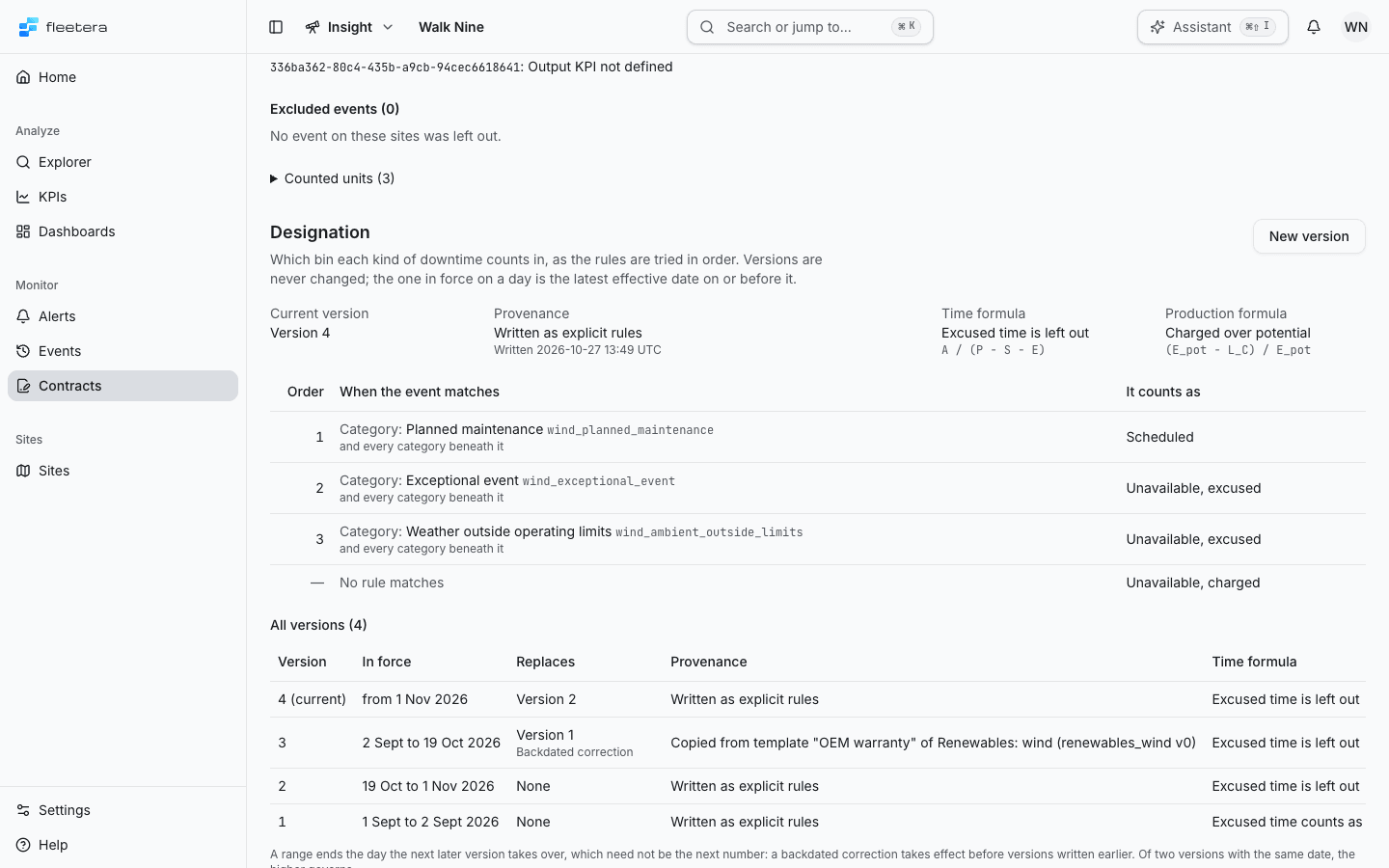
All versions lists every version, highest number first:
| Column | What it shows |
|---|---|
| Version | The number, and (current) for the highest |
| In force | The range of days it governs, for example 2 Sept to 19 Oct 2026, or from 1 Nov 2026 for an open range. Never in force means a higher version takes effect the same day |
| Replaces | The version that governed its first day before it was written, or None. Backdated correction marks a version that takes effect before versions written earlier |
| Provenance | The template it was copied from, or Written as explicit rules |
| Time formula, Production formula | The formulas it computes with |
| No rule matches | The bin for events no rule matches |
| Rules | How many rules it has |
| Written | When it was saved, in UTC |
A range ends the day the next later version takes over, which need not be the next number. A backdated correction changes how earlier periods count from its effective date on, without editing the version it corrects, so the version history still shows what was in force before.
Formulas
Each version fixes two formulas when it is saved.
| Formula | Definition | Use it when |
|---|---|---|
| Excused time counts as available | (A + E) / (P - S) | The contract treats excused downtime as time the unit was available |
| Excused time is left out | A / (P - S - E) | The contract removes excused downtime from the time it measures |
| Charged over potential | (E_pot - L_C) / E_pot | Production availability is the share of potential production not lost to charged downtime |
| Excused energy out of the denominator | 1 - L_C / (E_pot - L_X) | The contract also removes production lost to excused downtime from the potential |
P is the counted unit-time. E_pot is the potential production, L_C the charged lost output and L_X the excused lost output, all in the pack's unit. A period whose versions use different formulas is reported per version, not as one figure. See Availability.
Write a new version
- On the contract, choose New version. The dialog, New designation version, names the version number it will save.
- Under Rules from, choose A pack template or Explicit rules.
- For a template, choose the Pack, then the Template. The dialog shows the template's description and rules. To adjust them, choose Edit as explicit rules; the copy is then written as explicit rules, not as the template.
- For explicit rules, set what each rule matches on (Category, Responsibility or Event origin), the code it matches, and the bin it counts as. The controls are labelled by rule, for example Rule 1 matches on and Rule 1 counts as. Use the arrows to move a rule up or down, Add rule for another, and choose the bin When no rule matches, it counts as.
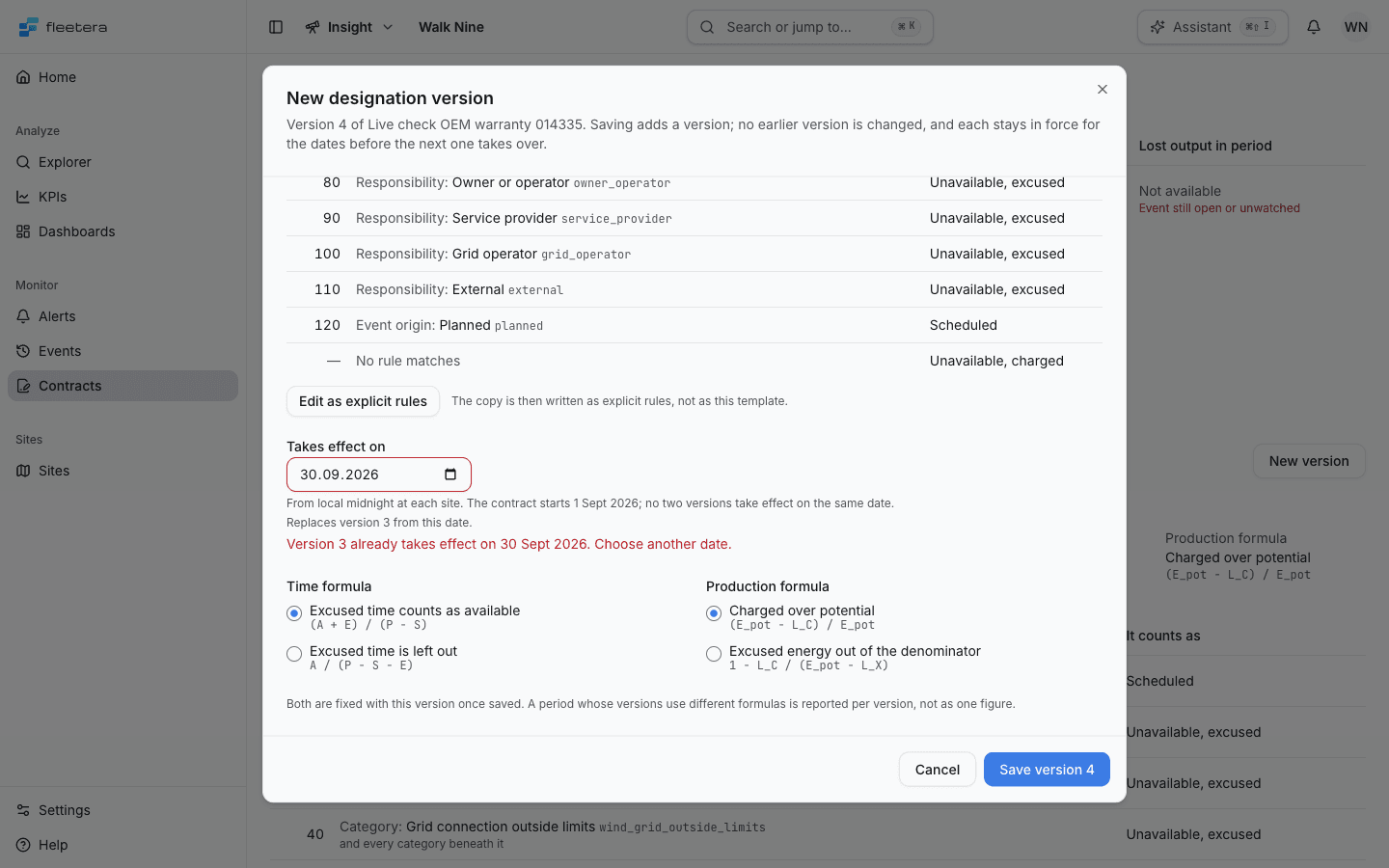
- Enter the date it Takes effect on. The version applies from local midnight at each site.
- Choose the Time formula and the Production formula.
- Choose Save version and its number, for example Save version 4.
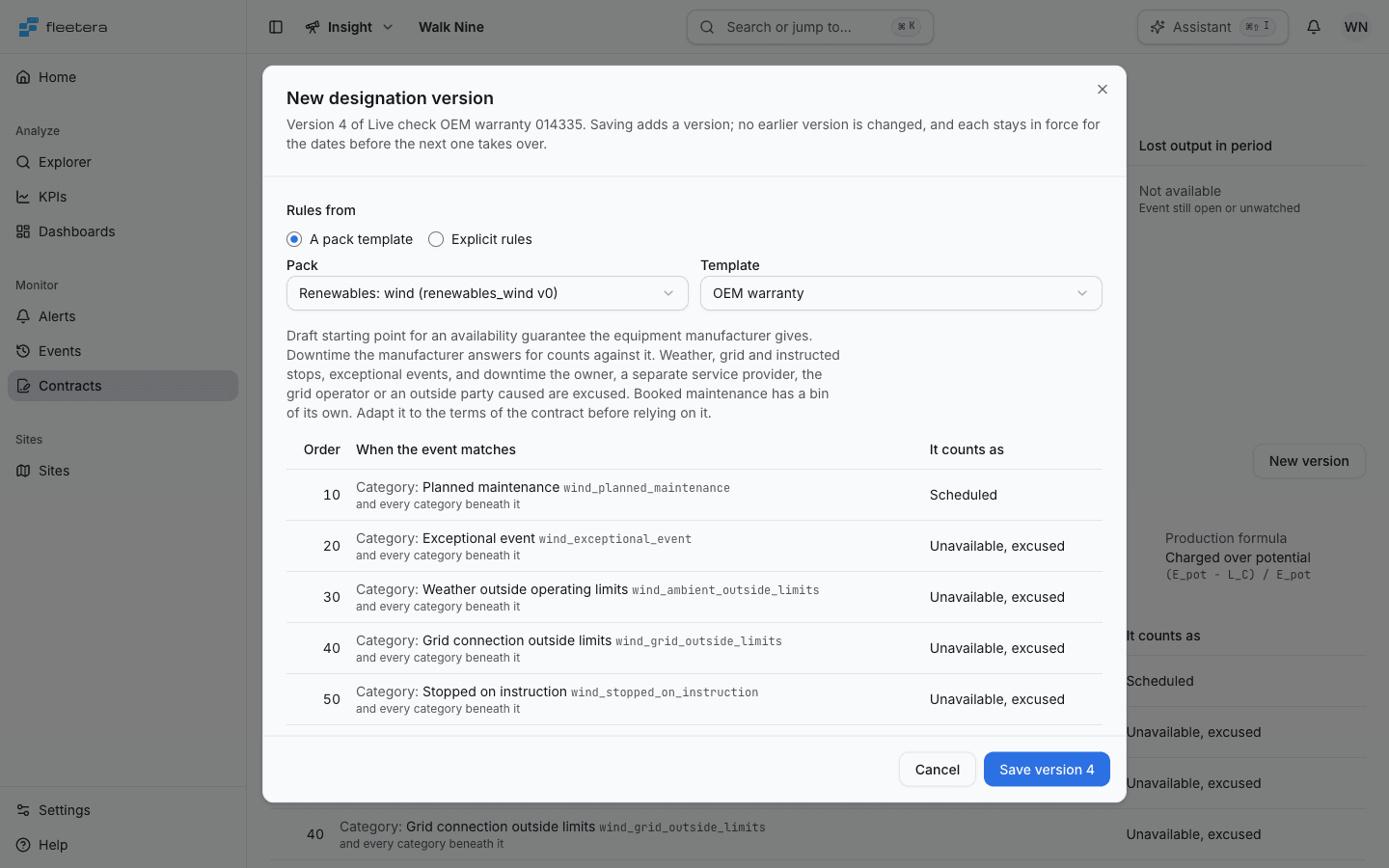
A category rule also matches every category beneath it, so put a rule on a narrower category above its parent's to override it. When a later rule could never apply, the dialog says Never applies and names the rule that matches first.
As you choose the date, the dialog says which version this one replaces from that date and, when a later version exists, until when. When the date falls before a later version's date, it adds This is a backdated correction: availability for periods from this date is read under it.
After saving, the page says, for example, Version 4 saved, in force from 1 Nov 2026.
When a version is refused
Refusals appear on the field they belong to, and nothing is written:
- A version cannot take effect before the contract starts on the date it names. Choose that date or a later one.
- Version 3 already takes effect on the date you chose. No two versions take effect on the same date; choose another.
- A rule names a category or responsibility party your organization no longer has. The rule is marked; nothing is written.
- In your installed pack a rule on a parent category comes first, so a later rule could never apply.
If another version was saved after you opened the dialog, it says A newer version was written since you opened this form and keeps your draft. Choose Review against the latest versions, check the draft against them, then save again.
If no usable answer came back, the page says New designation version: outcome unknown and pauses writing a version so it is not saved twice. Choose Reload contract and check All versions before you decide again.