%22%2F%3E%3Cpath%20d%3D%22M80%2019.0476C80%2021.8529%2077.4958%2024%2074.4487%2024H38.1027C37.5097%2024%2036.9205%2024.088%2036.358%2024.2607L35.6865%2024.4667C34.039%2024.9723%2033.0561%2026.2588%2032.507%2027.7756L32.2831%2028.3938C32.0956%2028.9117%2032%2029.4541%2032%2030V43.144C32%2045.9492%2029.322%2048%2026.275%2048H5.58529C2.53821%2048%200%2045.9799%200%2043.1746V29.2064C0%2026.4011%202.5131%2023.9667%205.56018%2023.9667H25.3545C25.9475%2023.9667%2026.5366%2023.8787%2027.0992%2023.7061L27.7707%2023.5C29.4182%2022.9944%2030.9439%2021.9645%2031.493%2020.4478L31.7169%2019.8296C31.9044%2019.3117%2032%2018.7693%2032%2018.2234V5.07937C32%202.27411%2034.1943%200%2037.2414%200H74.4828C77.5298%200%2080%202.27411%2080%205.07937V19.0476Z%22%20fill%3D%22url(%23b)%22%2F%3E%3Cdefs%3E%3ClinearGradient%20id%3D%22a%22%20x1%3D%220%22%20y1%3D%2280%22%20x2%3D%2280%22%20y2%3D%220%22%20gradientUnits%3D%22userSpaceOnUse%22%3E%3Cstop%20stop-color%3D%22%236B7280%22%2F%3E%3Cstop%20offset%3D%22.9%22%20stop-color%3D%22%239CA3AF%22%2F%3E%3C%2FlinearGradient%3E%3ClinearGradient%20id%3D%22b%22%20x1%3D%220%22%20y1%3D%2280%22%20x2%3D%2280%22%20y2%3D%220%22%20gradientUnits%3D%22userSpaceOnUse%22%3E%3Cstop%20stop-color%3D%22%236B7280%22%2F%3E%3Cstop%20offset%3D%22.9%22%20stop-color%3D%22%239CA3AF%22%2F%3E%3C%2FlinearGradient%3E%3C%2Fdefs%3E%3C%2Fsvg%3E)
%22%2F%3E%3Cpath%20d%3D%22M80%2019.0476C80%2021.8529%2077.4958%2024%2074.4487%2024H38.1027C37.5097%2024%2036.9205%2024.088%2036.358%2024.2607L35.6865%2024.4667C34.039%2024.9723%2033.0561%2026.2588%2032.507%2027.7756L32.2831%2028.3938C32.0956%2028.9117%2032%2029.4541%2032%2030V43.144C32%2045.9492%2029.322%2048%2026.275%2048H5.58529C2.53821%2048%200%2045.9799%200%2043.1746V29.2064C0%2026.4011%202.5131%2023.9667%205.56018%2023.9667H25.3545C25.9475%2023.9667%2026.5366%2023.8787%2027.0992%2023.7061L27.7707%2023.5C29.4182%2022.9944%2030.9439%2021.9645%2031.493%2020.4478L31.7169%2019.8296C31.9044%2019.3117%2032%2018.7693%2032%2018.2234V5.07937C32%202.27411%2034.1943%200%2037.2414%200H74.4828C77.5298%200%2080%202.27411%2080%205.07937V19.0476Z%22%20fill%3D%22url(%23b)%22%2F%3E%3Cdefs%3E%3ClinearGradient%20id%3D%22a%22%20x1%3D%220%22%20y1%3D%2280%22%20x2%3D%2280%22%20y2%3D%220%22%20gradientUnits%3D%22userSpaceOnUse%22%3E%3Cstop%20stop-color%3D%22%230061FF%22%2F%3E%3Cstop%20offset%3D%22.9%22%20stop-color%3D%22%2360EFFF%22%2F%3E%3C%2FlinearGradient%3E%3ClinearGradient%20id%3D%22b%22%20x1%3D%220%22%20y1%3D%2280%22%20x2%3D%2280%22%20y2%3D%220%22%20gradientUnits%3D%22userSpaceOnUse%22%3E%3Cstop%20stop-color%3D%22%230061FF%22%2F%3E%3Cstop%20offset%3D%22.9%22%20stop-color%3D%22%2360EFFF%22%2F%3E%3C%2FlinearGradient%3E%3C%2Fdefs%3E%3C%2Fsvg%3E)
Contracts
Record the service agreements you measure availability against, with their counterparty, sites, periods and guarantee.
A service contract is the agreement availability is measured against: who it is with, the sites it covers, how its periods are cut and what it guarantees. Its designation says how each kind of downtime counts, and its availability is computed from your downtime events for one period at a time.
Open Insight → Monitor → Contracts.
Who can do what
| Role | Contracts |
|---|---|
| Viewer | Read contracts, their designations and their availability, and export it |
| Operator, Admin | Also create contracts, edit their terms and add designation versions |
Creating a contract also needs the site directory. Writing a designation version needs an installed classification vocabulary you can read.
If your plan does not include Contracts, the page says Contracts is not included in your plan. If access could not be checked, it says Contracts access could not be checked. and offers Retry access check. Neither message means your contracts are gone.
The list
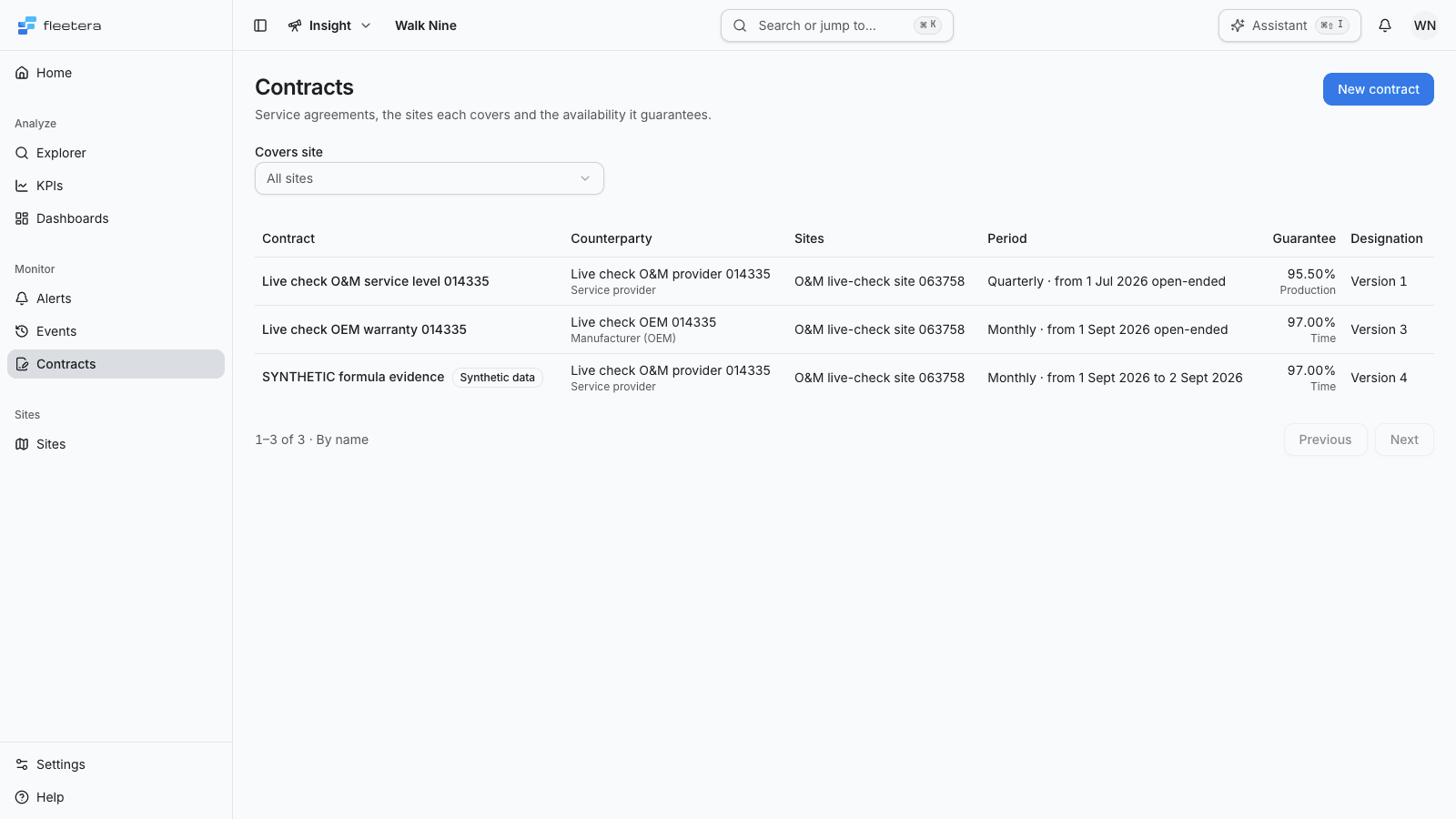
Each row shows the Contract name, the Counterparty and its role, the Sites it covers (the first two, then how many more), its Period, its Guarantee as a percentage of time or production availability, and its current Designation version, or None yet.
Use Covers site to list only the contracts that cover one site. The list is sorted by name, 50 contracts a page, with Previous and Next. The filter and page stay in the page URL.
A Synthetic data badge marks a contract whose name starts with SYNTHETIC. The outlined badge sits beside the name in the list and on the contract, and again above its availability figures. Such a contract is a test built from simulated data. Its figures test the model and are not evidence about your fleet.
Create a contract
- Choose New contract.
- Enter a Name of up to 200 characters.
- Under Counterparty, choose Existing counterparty and pick one, using Find by name to narrow the choices. Or choose New counterparty and enter its Counterparty name, its Role (Manufacturer (OEM), Service provider, Owner or Other role) and, if it helps, a Note (optional).
- Under Sites covered, select between 1 and 200 sites. Find a site narrows the list.
- Choose the Period: Monthly, Quarterly or Yearly. Availability is computed for one such period at a time.
- Enter Starts on and, for a contract with an end, Ends on (optional). Both dates count in full. Leave the end empty for an open-ended contract.
- Choose the month the Contract year starts. It must start a period: any month for a monthly contract, January, April, July or October for a quarterly one, and January for a yearly one.
- Under Guarantee, choose Time availability or Production availability, and enter the Guaranteed percent, from 0 to 100 with at most two decimals.
- Choose Create contract.
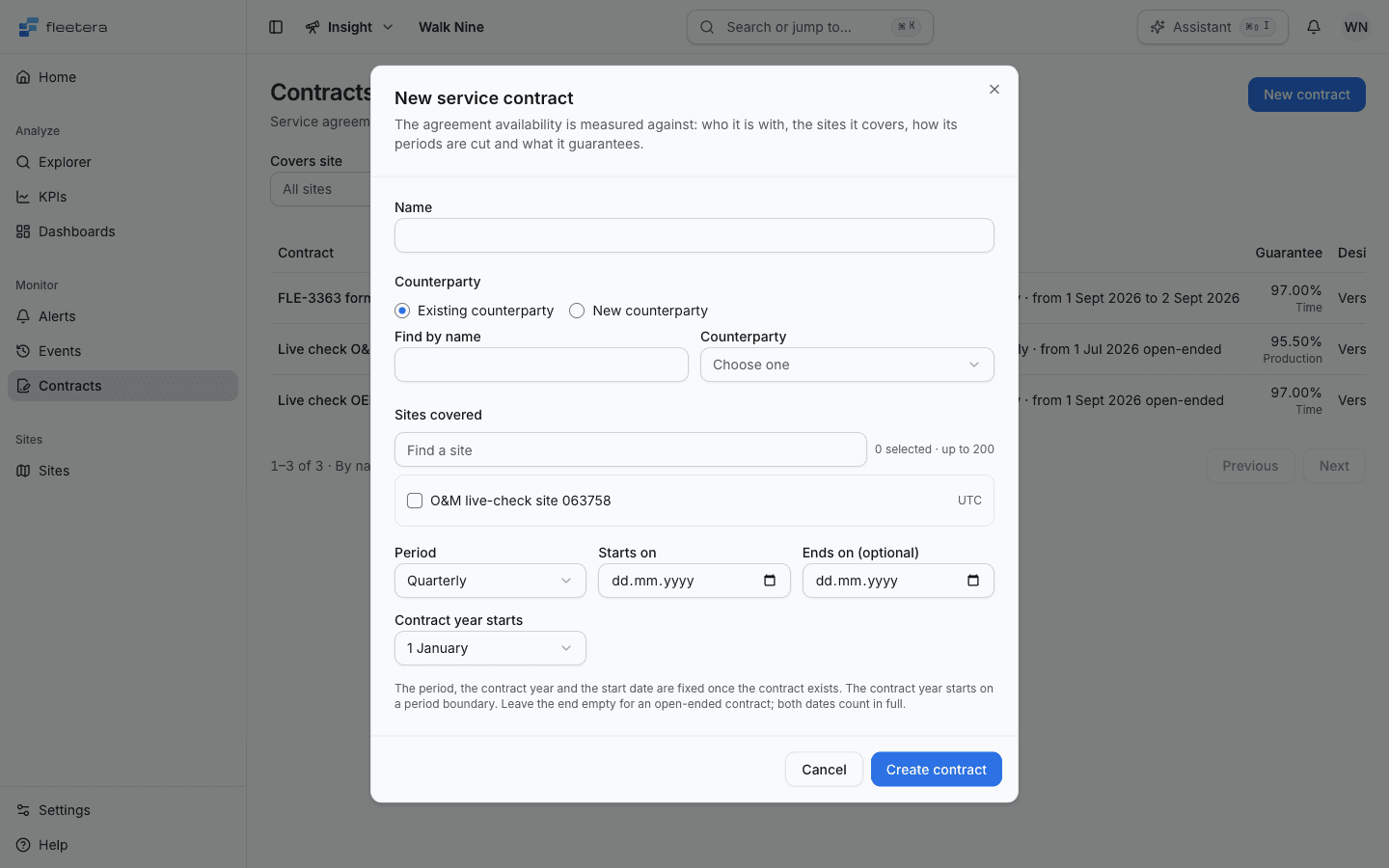
The period, the contract year and the start date are fixed once the contract exists, and so is the counterparty. A new contract has no designation yet, so its availability cannot be computed until you write a first version.
Read a contract
Select a contract's name to open it. The heading shows the name and who the contract is with. Terms shows the Guarantee, the Period with the month the contract year starts, the Dates (both count in full), when the terms were Last changed, and the Sites covered.
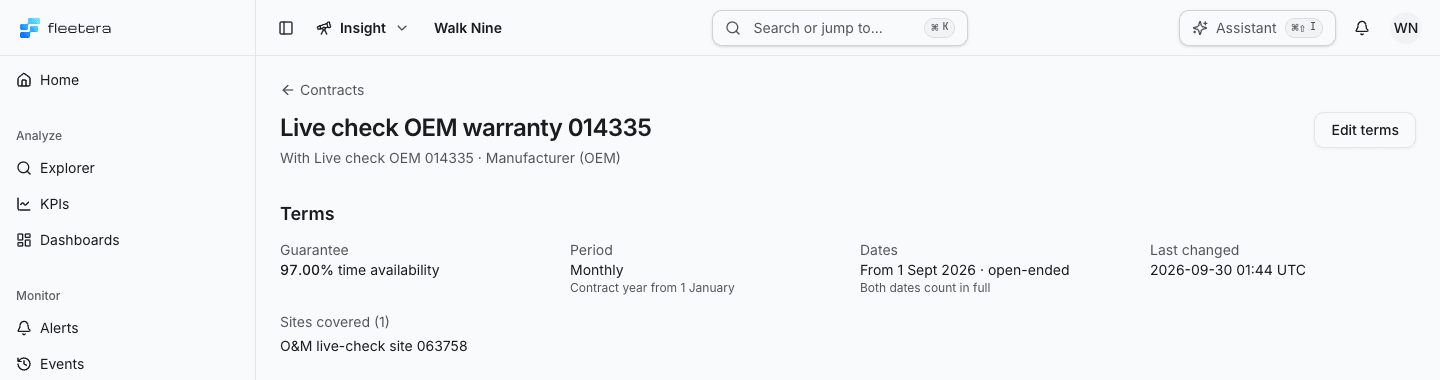
Below the terms come Availability and Designation.
Edit the terms
Choose Edit terms to change the name, the sites, the end date or the guarantee. The dialog shows the fixed terms separately: a different counterparty, period, contract year or start needs a new contract. Choose Save terms. If nothing changed, the dialog says Nothing changed. Edit a field before saving.
A change to the sites or the guarantee applies to every period you open from then on, including past ones, because availability is computed each time you open it.
When a save does not go through
Every refusal shows the reason first, then what to do about it.
- Someone else saved first. If the terms changed after you opened the dialog, nothing is sent and the dialog says when the other change was saved. If another change was saved at the same moment, yours is refused and nothing is written. Either way, choose Load current terms, then make your change again.
- The service was busy. The change may or may not have saved. Reload before retrying. When the page names a wait, try again after it.
- Outcome unknown. If no usable answer came back, the page says, for example, Contract terms: outcome unknown and pauses the same change so it is not made twice. Choose Reload contract, check the current terms, then decide again. A refresh of the page's data alone does not prove the request finished.
- Your session changed. Reload before saving.