%22%2F%3E%3Cpath%20d%3D%22M80%2019.0476C80%2021.8529%2077.4958%2024%2074.4487%2024H38.1027C37.5097%2024%2036.9205%2024.088%2036.358%2024.2607L35.6865%2024.4667C34.039%2024.9723%2033.0561%2026.2588%2032.507%2027.7756L32.2831%2028.3938C32.0956%2028.9117%2032%2029.4541%2032%2030V43.144C32%2045.9492%2029.322%2048%2026.275%2048H5.58529C2.53821%2048%200%2045.9799%200%2043.1746V29.2064C0%2026.4011%202.5131%2023.9667%205.56018%2023.9667H25.3545C25.9475%2023.9667%2026.5366%2023.8787%2027.0992%2023.7061L27.7707%2023.5C29.4182%2022.9944%2030.9439%2021.9645%2031.493%2020.4478L31.7169%2019.8296C31.9044%2019.3117%2032%2018.7693%2032%2018.2234V5.07937C32%202.27411%2034.1943%200%2037.2414%200H74.4828C77.5298%200%2080%202.27411%2080%205.07937V19.0476Z%22%20fill%3D%22url(%23b)%22%2F%3E%3Cdefs%3E%3ClinearGradient%20id%3D%22a%22%20x1%3D%220%22%20y1%3D%2280%22%20x2%3D%2280%22%20y2%3D%220%22%20gradientUnits%3D%22userSpaceOnUse%22%3E%3Cstop%20stop-color%3D%22%236B7280%22%2F%3E%3Cstop%20offset%3D%22.9%22%20stop-color%3D%22%239CA3AF%22%2F%3E%3C%2FlinearGradient%3E%3ClinearGradient%20id%3D%22b%22%20x1%3D%220%22%20y1%3D%2280%22%20x2%3D%2280%22%20y2%3D%220%22%20gradientUnits%3D%22userSpaceOnUse%22%3E%3Cstop%20stop-color%3D%22%236B7280%22%2F%3E%3Cstop%20offset%3D%22.9%22%20stop-color%3D%22%239CA3AF%22%2F%3E%3C%2FlinearGradient%3E%3C%2Fdefs%3E%3C%2Fsvg%3E)
%22%2F%3E%3Cpath%20d%3D%22M80%2019.0476C80%2021.8529%2077.4958%2024%2074.4487%2024H38.1027C37.5097%2024%2036.9205%2024.088%2036.358%2024.2607L35.6865%2024.4667C34.039%2024.9723%2033.0561%2026.2588%2032.507%2027.7756L32.2831%2028.3938C32.0956%2028.9117%2032%2029.4541%2032%2030V43.144C32%2045.9492%2029.322%2048%2026.275%2048H5.58529C2.53821%2048%200%2045.9799%200%2043.1746V29.2064C0%2026.4011%202.5131%2023.9667%205.56018%2023.9667H25.3545C25.9475%2023.9667%2026.5366%2023.8787%2027.0992%2023.7061L27.7707%2023.5C29.4182%2022.9944%2030.9439%2021.9645%2031.493%2020.4478L31.7169%2019.8296C31.9044%2019.3117%2032%2018.7693%2032%2018.2234V5.07937C32%202.27411%2034.1943%200%2037.2414%200H74.4828C77.5298%200%2080%202.27411%2080%205.07937V19.0476Z%22%20fill%3D%22url(%23b)%22%2F%3E%3Cdefs%3E%3ClinearGradient%20id%3D%22a%22%20x1%3D%220%22%20y1%3D%2280%22%20x2%3D%2280%22%20y2%3D%220%22%20gradientUnits%3D%22userSpaceOnUse%22%3E%3Cstop%20stop-color%3D%22%230061FF%22%2F%3E%3Cstop%20offset%3D%22.9%22%20stop-color%3D%22%2360EFFF%22%2F%3E%3C%2FlinearGradient%3E%3ClinearGradient%20id%3D%22b%22%20x1%3D%220%22%20y1%3D%2280%22%20x2%3D%2280%22%20y2%3D%220%22%20gradientUnits%3D%22userSpaceOnUse%22%3E%3Cstop%20stop-color%3D%22%230061FF%22%2F%3E%3Cstop%20offset%3D%22.9%22%20stop-color%3D%22%2360EFFF%22%2F%3E%3C%2FlinearGradient%3E%3C%2Fdefs%3E%3C%2Fsvg%3E)
Event record
Read one downtime event's facts, alarms, classification and journal, and change it with a recorded reason.
Select an asset name in the Events list to open that event's record. The record has a stable address, so the list, a contract's availability result and a colleague's link all open the same page. Events at the top returns to the list.
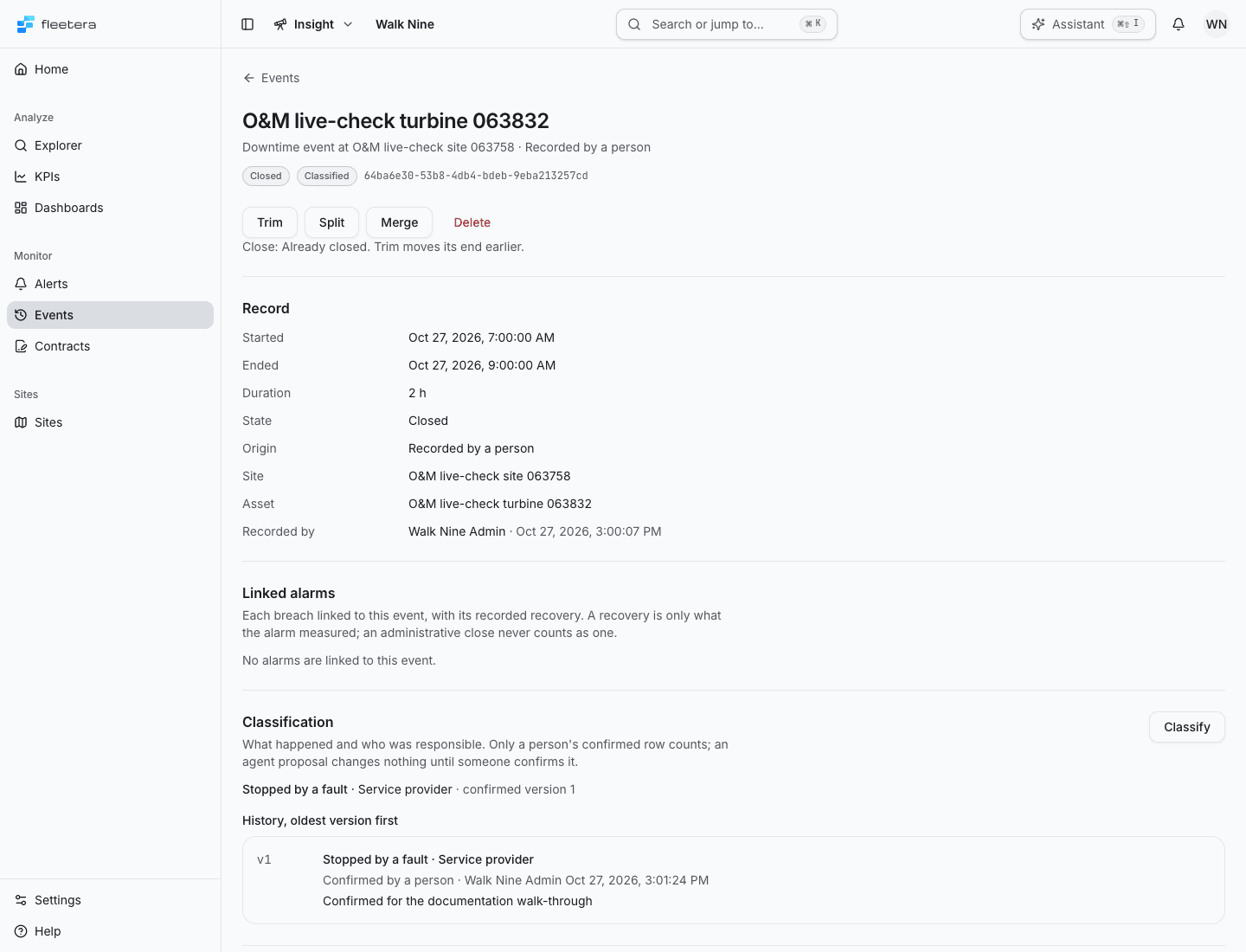
The heading names the asset, then the site and how the event began. The badges show the state, Classified or Unclassified, and, when an agent has proposed a classification nobody has answered yet, for example 1 agent proposal to review. The event ID follows.
Record
Record lists Started, Ended, Duration, State, Origin, Site, Asset and Recorded by, which is a person or System. An open event shows No end recorded and a duration that ends with so far. An unwatched event also shows its Unwatched reason. A deleted event shows when, and by whom, it was deleted.
The origin says how the event began:
| Origin | Meaning |
|---|---|
| Recorded by a person | Someone recorded the downtime |
| Opened by an alarm | An alarm breach opened it. Opening alarm links to that alarm |
| Opened by a maintenance plan | A maintenance plan opened it |
| Imported | It came from an import |
| Computed by the state engine | The state engine opened it |
Linked alarms
Linked alarms lists each breach linked to the event, with its Breach time and its Recovery. A recovery is only what the alarm measured. An administrative close never counts as one, and the row shows its reason separately. Each row says whether the alarm Opened this event or Joined after it opened, and Open alarm opens it. When the event closed while a breach was still active, the row says No recovery recorded. The breach was still active when this event closed.
Change an event
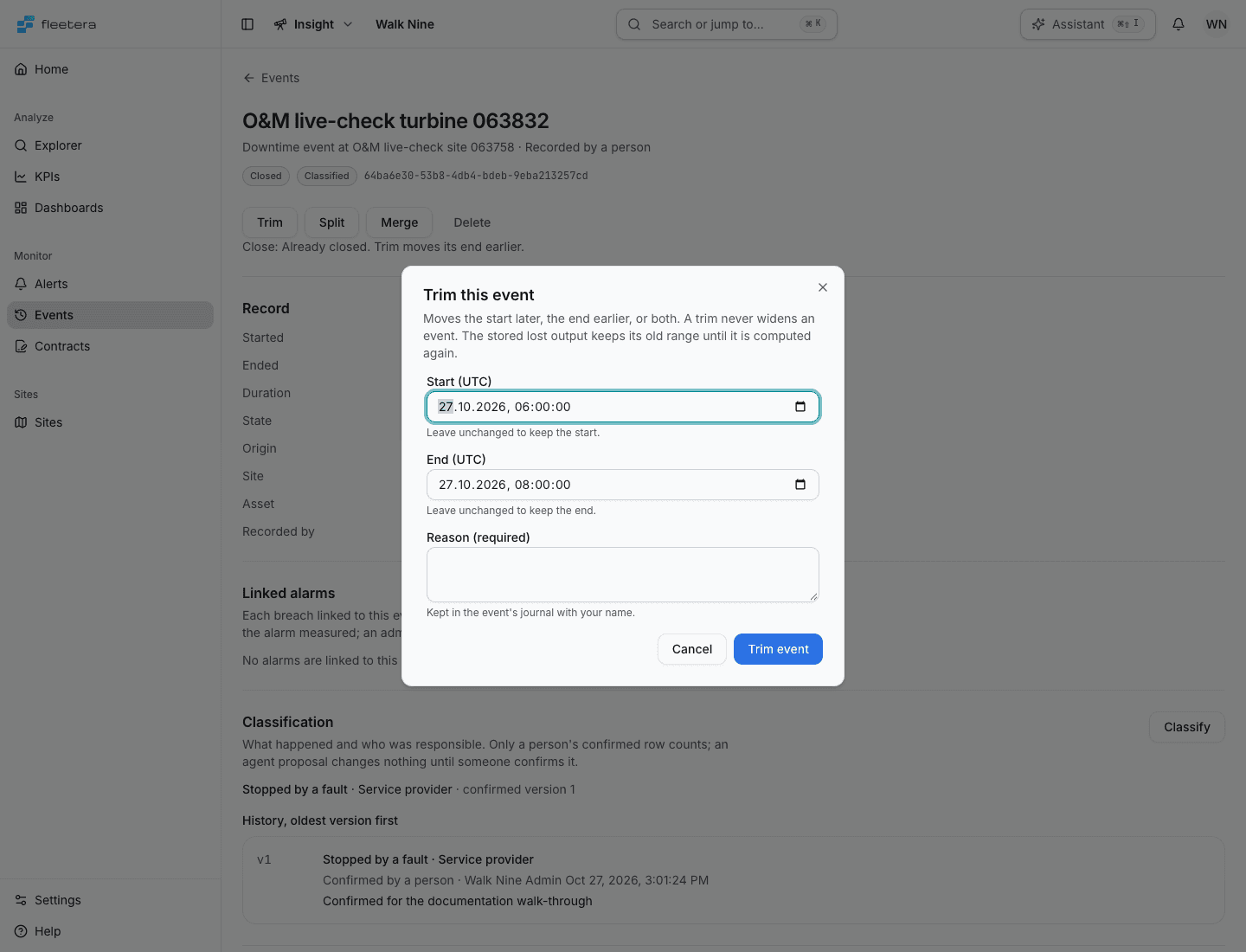
Operators and admins see the changes the event's state and origin allow. Each opens a dialog that says what the change will do before you send it.
- Choose Close event, Trim, Split, Merge or Delete.
- Fill in the times or the choice the dialog asks for. Times are in UTC, to the second.
- Enter a Reason (required), up to 2,000 characters. It is kept in the event's journal with your name.
- Choose the dialog's action button, for example Trim event. Cancel closes it without a change.
| Change | What it does |
|---|---|
| Close event | Sets the end of an open or unwatched event. The end must be after the start and not in the future. Lost output is then computed for the closed range |
| Trim | Moves the start later, the end earlier, or both. A trim never widens an event. An open event has no end to trim; close it first |
| Split | Ends this event at the split point, which must lie strictly inside it. A new event takes the rest, with the same origin, no classification and no lost output |
| Merge | Joins this event with the event directly before or after it on the same asset. The earlier event survives and takes the later one's end and state; the later one is deleted and keeps its own journal, classification and lost output |
| Delete | Removes the event from every list and every availability figure. Its record, classification history and journal stay readable at its address |
Some changes depend on how the event began, because a system-opened event's boundaries were measured. Only events recorded by a person can be split, and only an event recorded by a person can be absorbed as the later event of a merge. When a change is not offered, a line under the buttons says why, for example Close: Already closed. Trim moves its end earlier. A deleted event takes no further changes.
After a change, a line above the record says what happened and links any new or surviving event, for example Open the new event after a split. The record and every Events list then refresh.
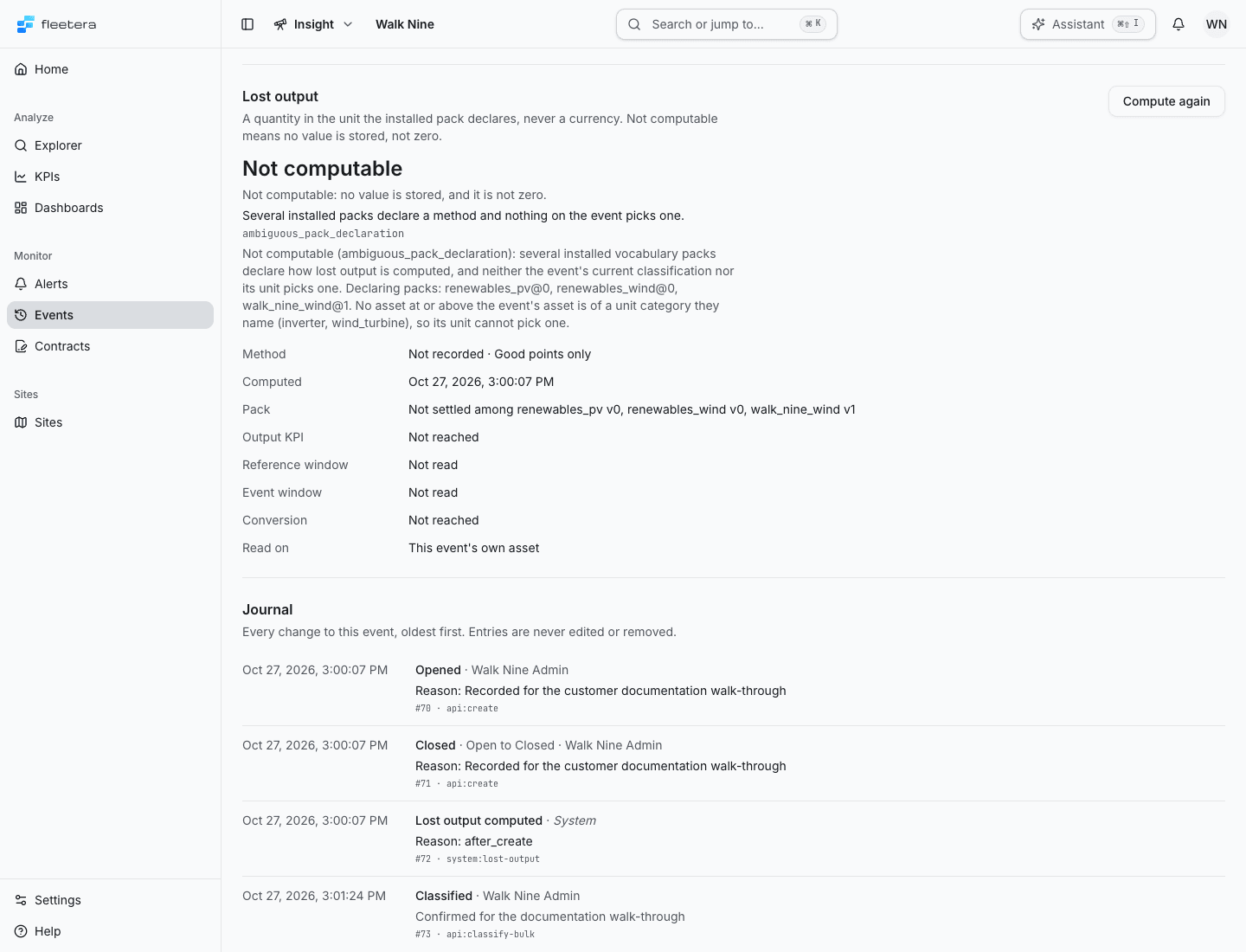
A trim, split or merge leaves the stored lost output on the old range until it is computed again. See Lost output.
Journal
Journal lists every change to the event, oldest first. Entries are never edited or removed. Each entry shows when it happened, what happened, for example Opened, Closed, Trimmed, Classified or Lost output computed, any change of state, and who acted: a person, System, Agent or Integration. A person's reason shows as Reason:, and an entry that touched another event links it, for example New event after a split.
When a change does not go through
The dialog keeps what you typed and shows the reason. The record re-reads, so you see the state that won.
- Someone changed this event first. Check the refreshed record, then submit again.
- That interval would overlap another event of this asset. The dialog links the event in the way.
- The database is busy. The change may or may not have saved. Read the journal before you submit again. The submit button stays paused for the few seconds the message names, while the database recovers.
- No usable answer came back. The change may have saved. Read the journal before you submit again.
When the record itself cannot be read because the database is busy, the page says The event database is busy. and Nothing is wrong with this event. Retry becomes available once the countdown ends.
An address that does not match an event you can read shows Event not found, whether the event never existed or belongs to someone else.