%22%2F%3E%3Cpath%20d%3D%22M80%2019.0476C80%2021.8529%2077.4958%2024%2074.4487%2024H38.1027C37.5097%2024%2036.9205%2024.088%2036.358%2024.2607L35.6865%2024.4667C34.039%2024.9723%2033.0561%2026.2588%2032.507%2027.7756L32.2831%2028.3938C32.0956%2028.9117%2032%2029.4541%2032%2030V43.144C32%2045.9492%2029.322%2048%2026.275%2048H5.58529C2.53821%2048%200%2045.9799%200%2043.1746V29.2064C0%2026.4011%202.5131%2023.9667%205.56018%2023.9667H25.3545C25.9475%2023.9667%2026.5366%2023.8787%2027.0992%2023.7061L27.7707%2023.5C29.4182%2022.9944%2030.9439%2021.9645%2031.493%2020.4478L31.7169%2019.8296C31.9044%2019.3117%2032%2018.7693%2032%2018.2234V5.07937C32%202.27411%2034.1943%200%2037.2414%200H74.4828C77.5298%200%2080%202.27411%2080%205.07937V19.0476Z%22%20fill%3D%22url(%23b)%22%2F%3E%3Cdefs%3E%3ClinearGradient%20id%3D%22a%22%20x1%3D%220%22%20y1%3D%2280%22%20x2%3D%2280%22%20y2%3D%220%22%20gradientUnits%3D%22userSpaceOnUse%22%3E%3Cstop%20stop-color%3D%22%236B7280%22%2F%3E%3Cstop%20offset%3D%22.9%22%20stop-color%3D%22%239CA3AF%22%2F%3E%3C%2FlinearGradient%3E%3ClinearGradient%20id%3D%22b%22%20x1%3D%220%22%20y1%3D%2280%22%20x2%3D%2280%22%20y2%3D%220%22%20gradientUnits%3D%22userSpaceOnUse%22%3E%3Cstop%20stop-color%3D%22%236B7280%22%2F%3E%3Cstop%20offset%3D%22.9%22%20stop-color%3D%22%239CA3AF%22%2F%3E%3C%2FlinearGradient%3E%3C%2Fdefs%3E%3C%2Fsvg%3E)
%22%2F%3E%3Cpath%20d%3D%22M80%2019.0476C80%2021.8529%2077.4958%2024%2074.4487%2024H38.1027C37.5097%2024%2036.9205%2024.088%2036.358%2024.2607L35.6865%2024.4667C34.039%2024.9723%2033.0561%2026.2588%2032.507%2027.7756L32.2831%2028.3938C32.0956%2028.9117%2032%2029.4541%2032%2030V43.144C32%2045.9492%2029.322%2048%2026.275%2048H5.58529C2.53821%2048%200%2045.9799%200%2043.1746V29.2064C0%2026.4011%202.5131%2023.9667%205.56018%2023.9667H25.3545C25.9475%2023.9667%2026.5366%2023.8787%2027.0992%2023.7061L27.7707%2023.5C29.4182%2022.9944%2030.9439%2021.9645%2031.493%2020.4478L31.7169%2019.8296C31.9044%2019.3117%2032%2018.7693%2032%2018.2234V5.07937C32%202.27411%2034.1943%200%2037.2414%200H74.4828C77.5298%200%2080%202.27411%2080%205.07937V19.0476Z%22%20fill%3D%22url(%23b)%22%2F%3E%3Cdefs%3E%3ClinearGradient%20id%3D%22a%22%20x1%3D%220%22%20y1%3D%2280%22%20x2%3D%2280%22%20y2%3D%220%22%20gradientUnits%3D%22userSpaceOnUse%22%3E%3Cstop%20stop-color%3D%22%230061FF%22%2F%3E%3Cstop%20offset%3D%22.9%22%20stop-color%3D%22%2360EFFF%22%2F%3E%3C%2FlinearGradient%3E%3ClinearGradient%20id%3D%22b%22%20x1%3D%220%22%20y1%3D%2280%22%20x2%3D%2280%22%20y2%3D%220%22%20gradientUnits%3D%22userSpaceOnUse%22%3E%3Cstop%20stop-color%3D%22%230061FF%22%2F%3E%3Cstop%20offset%3D%22.9%22%20stop-color%3D%22%2360EFFF%22%2F%3E%3C%2FlinearGradient%3E%3C%2Fdefs%3E%3C%2Fsvg%3E)
Events
Review downtime events, narrow the list on the server, page through it and export recorded results.
Open Insight → Monitor → Events to review downtime across your sites. Each row shows Asset / Site, Started / Ended, State / Origin, Category / Responsibility and Lost output / Quality. The asset name links to the event record, where you can read and change one event.
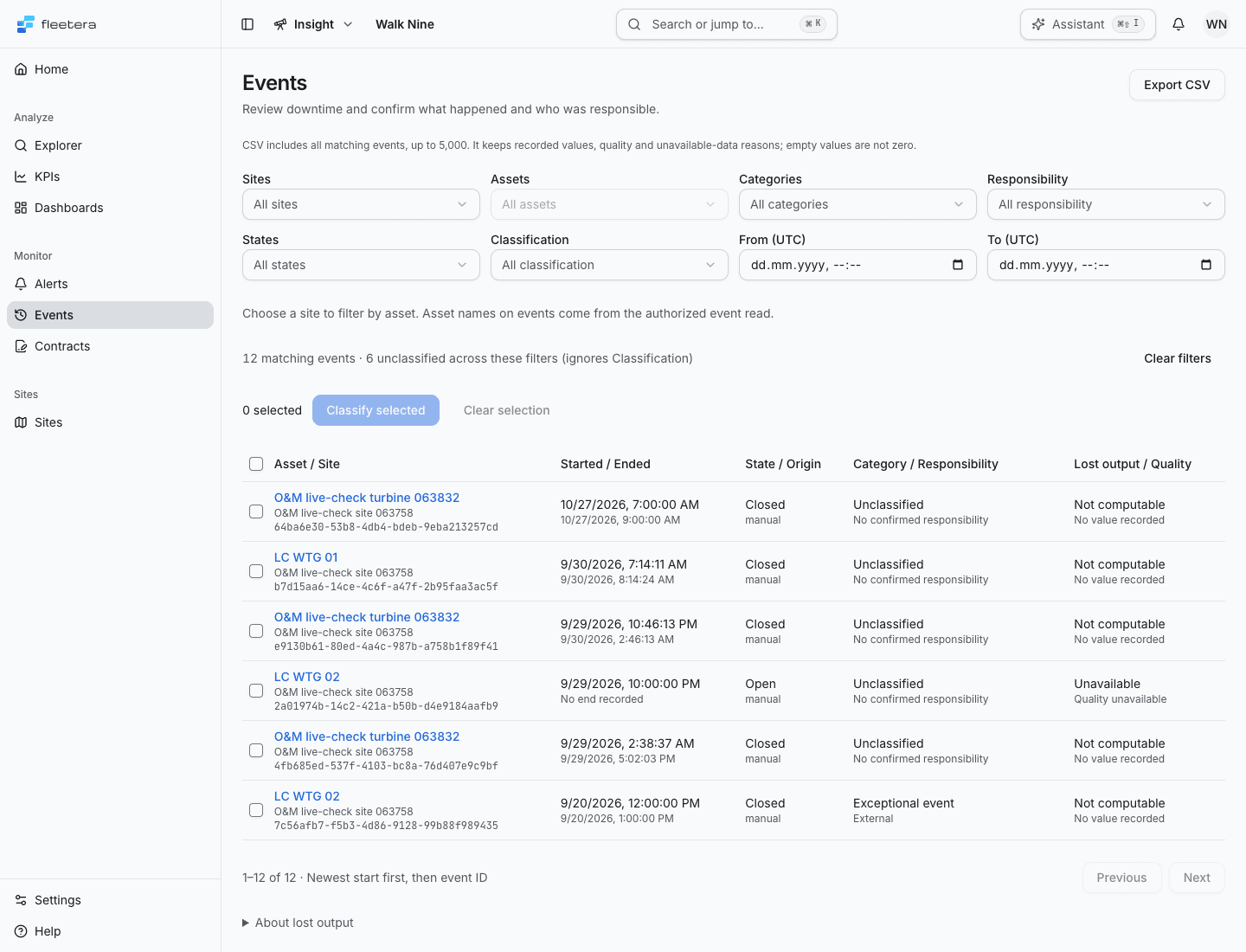
Open means no end has been recorded. Closed means an end is recorded. Unwatched means the event remains open but its alarm no longer watches it; the row shows the recorded reason, or says the reason is unavailable. The list does not turn a missing end into a closed event. Below the state, the row shows the origin as recorded, for example manual for an event a person recorded or alert for one an alarm opened.
Names come from reads you are allowed to make. A missing or inaccessible name has an explicit unavailable label. A name being unavailable does not erase the recorded event.
Who can do what
| Role | Events |
|---|---|
| Viewer | Read the list, the event records and the export |
| Operator, Admin | Also select and classify events, and change an event on its record |
Classification and the Categories and Responsibility filters also need an installed classification vocabulary you can read. Without it the page says Classification vocabulary unavailable.
If your plan does not include Events, the page says Events is not included in your plan. If access could not be checked, it says so and offers Retry access check. Neither message means your events are gone.
Narrow the list
On smaller screens, choose Filters to open the controls. Use Sites, Assets, Categories, Responsibility, States and Classification. Choose a site before choosing an asset. Previous assets and More assets browse the site's asset choices.
Set From (UTC) and To (UTC) to find events that overlap a time range. The range controls use UTC; event times in the rows use your browser's local time after the page loads.
The filters run on the server across every event you can read, not only the rows on screen. They stay in the page URL, so a link opens the same view. Changing a filter starts at the first page and clears your selection. Clear filters widens the view and clears the selection.
The matching count describes the current filters. The unclassified count uses those same filters except Classification, so you can see how much of that population has no confirmed classification. An agent proposal does not make an event classified. Unavailable means the count was not provided or could not be read; it does not mean zero.
Page through events
The list shows 50 events a page, newest start first, then event ID, so the order is the same on every visit. The line below the table says which rows you see, for example 1–12 of 12. Previous and Next move one page and keep your filters. A page change clears your selection, because a selection belongs to the page it was made on.
If the list cannot be read, the page shows the reason and Retry events.
Export CSV
Choose Export CSV to download all events matching the current filters, across pages, as events.csv. The export accepts up to 5,000 events. If it exceeds that limit, narrow the filters and try again.
The CSV keeps recorded event IDs, UTC times, the origin and state, any opening alarm, confirmed category and responsibility labels with who confirmed them and when, lost-output values and units, quality, method and unavailable-data reasons where recorded. It does not add the current asset or site names displayed in the list. Empty values are not zero. If export fails, the page shows the reason and you can try again.
Use this export to keep or analyse the event record itself. To check how events count against a service contract, use the contract's availability export instead.