%22%2F%3E%3Cpath%20d%3D%22M80%2019.0476C80%2021.8529%2077.4958%2024%2074.4487%2024H38.1027C37.5097%2024%2036.9205%2024.088%2036.358%2024.2607L35.6865%2024.4667C34.039%2024.9723%2033.0561%2026.2588%2032.507%2027.7756L32.2831%2028.3938C32.0956%2028.9117%2032%2029.4541%2032%2030V43.144C32%2045.9492%2029.322%2048%2026.275%2048H5.58529C2.53821%2048%200%2045.9799%200%2043.1746V29.2064C0%2026.4011%202.5131%2023.9667%205.56018%2023.9667H25.3545C25.9475%2023.9667%2026.5366%2023.8787%2027.0992%2023.7061L27.7707%2023.5C29.4182%2022.9944%2030.9439%2021.9645%2031.493%2020.4478L31.7169%2019.8296C31.9044%2019.3117%2032%2018.7693%2032%2018.2234V5.07937C32%202.27411%2034.1943%200%2037.2414%200H74.4828C77.5298%200%2080%202.27411%2080%205.07937V19.0476Z%22%20fill%3D%22url(%23b)%22%2F%3E%3Cdefs%3E%3ClinearGradient%20id%3D%22a%22%20x1%3D%220%22%20y1%3D%2280%22%20x2%3D%2280%22%20y2%3D%220%22%20gradientUnits%3D%22userSpaceOnUse%22%3E%3Cstop%20stop-color%3D%22%236B7280%22%2F%3E%3Cstop%20offset%3D%22.9%22%20stop-color%3D%22%239CA3AF%22%2F%3E%3C%2FlinearGradient%3E%3ClinearGradient%20id%3D%22b%22%20x1%3D%220%22%20y1%3D%2280%22%20x2%3D%2280%22%20y2%3D%220%22%20gradientUnits%3D%22userSpaceOnUse%22%3E%3Cstop%20stop-color%3D%22%236B7280%22%2F%3E%3Cstop%20offset%3D%22.9%22%20stop-color%3D%22%239CA3AF%22%2F%3E%3C%2FlinearGradient%3E%3C%2Fdefs%3E%3C%2Fsvg%3E)
%22%2F%3E%3Cpath%20d%3D%22M80%2019.0476C80%2021.8529%2077.4958%2024%2074.4487%2024H38.1027C37.5097%2024%2036.9205%2024.088%2036.358%2024.2607L35.6865%2024.4667C34.039%2024.9723%2033.0561%2026.2588%2032.507%2027.7756L32.2831%2028.3938C32.0956%2028.9117%2032%2029.4541%2032%2030V43.144C32%2045.9492%2029.322%2048%2026.275%2048H5.58529C2.53821%2048%200%2045.9799%200%2043.1746V29.2064C0%2026.4011%202.5131%2023.9667%205.56018%2023.9667H25.3545C25.9475%2023.9667%2026.5366%2023.8787%2027.0992%2023.7061L27.7707%2023.5C29.4182%2022.9944%2030.9439%2021.9645%2031.493%2020.4478L31.7169%2019.8296C31.9044%2019.3117%2032%2018.7693%2032%2018.2234V5.07937C32%202.27411%2034.1943%200%2037.2414%200H74.4828C77.5298%200%2080%202.27411%2080%205.07937V19.0476Z%22%20fill%3D%22url(%23b)%22%2F%3E%3Cdefs%3E%3ClinearGradient%20id%3D%22a%22%20x1%3D%220%22%20y1%3D%2280%22%20x2%3D%2280%22%20y2%3D%220%22%20gradientUnits%3D%22userSpaceOnUse%22%3E%3Cstop%20stop-color%3D%22%230061FF%22%2F%3E%3Cstop%20offset%3D%22.9%22%20stop-color%3D%22%2360EFFF%22%2F%3E%3C%2FlinearGradient%3E%3ClinearGradient%20id%3D%22b%22%20x1%3D%220%22%20y1%3D%2280%22%20x2%3D%2280%22%20y2%3D%220%22%20gradientUnits%3D%22userSpaceOnUse%22%3E%3Cstop%20stop-color%3D%22%230061FF%22%2F%3E%3Cstop%20offset%3D%22.9%22%20stop-color%3D%22%2360EFFF%22%2F%3E%3C%2FlinearGradient%3E%3C%2Fdefs%3E%3C%2Fsvg%3E)
Bulk Runs
Send one command to up to 50 assets with the Execute Command wizard, in a staged rollout you can pause, resume or abort.
A bulk run sends the same command, with the same parameter values, to up to 50 assets. It goes out in batches: a small canary first, then the rest, with a stop rule that aborts the run when too many commands fail. Nothing is sent until you press Send on the last step.
Opening the wizard
Open Command, then Execute Command. The Overview's Run a command button opens the same page, and Run on ready assets on Coverage opens it with that site already chosen. Operators and admins can send bulk runs.
The wizard has five steps: Command, Targets, Parameters, Rollout and Review. Next moves on once a step is complete, and Back returns to the previous step without losing what you entered.
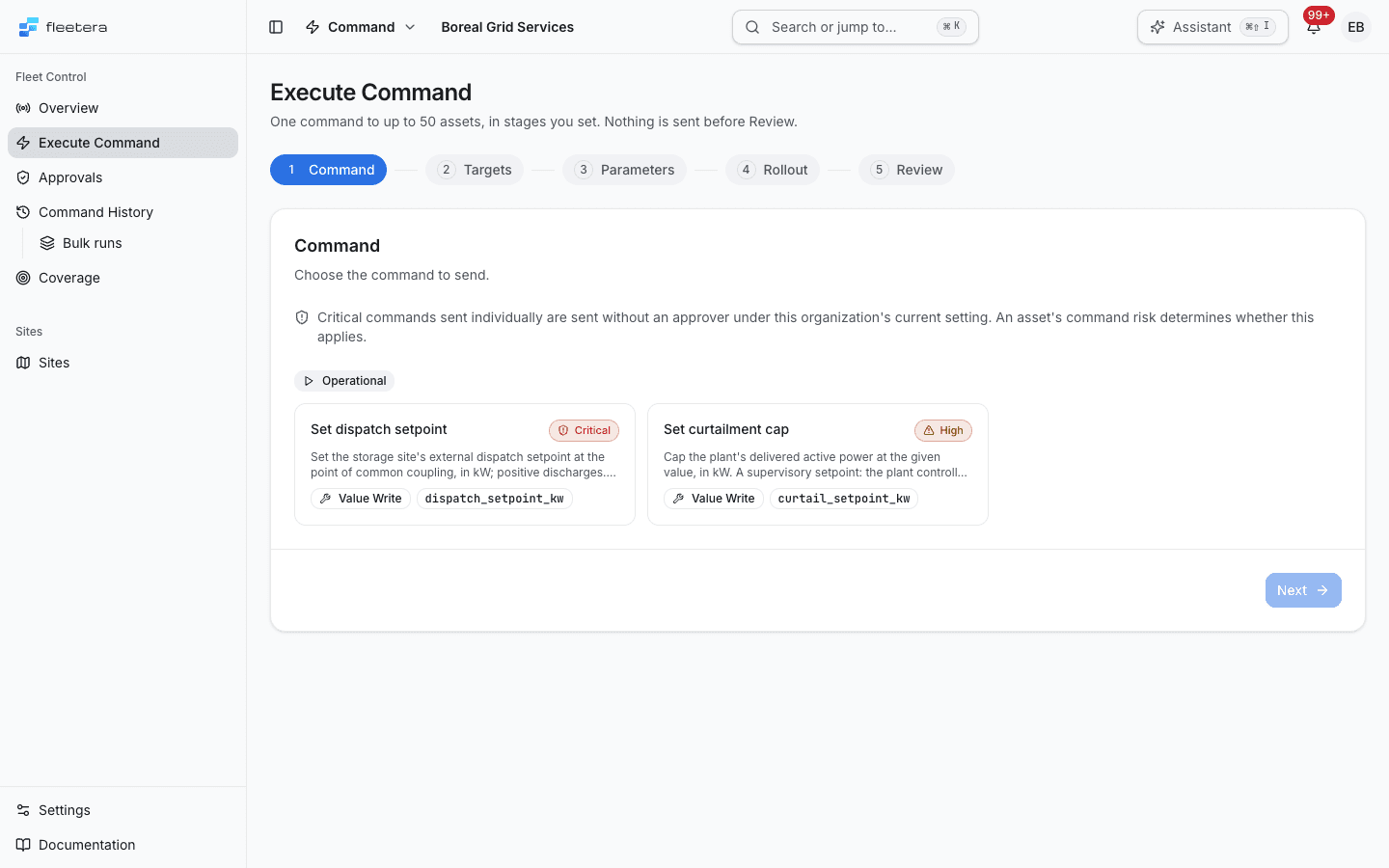
Step 1: Command
Choose the command to send. Commands are grouped by category, one card per command key, each with its risk, description, type and key. A command declared on several templates appears once. If its risk differs between assets, the card shows each risk and says Risk differs between assets.
A line above the cards says what your organization's two-person approval setting means for critical commands sent individually. It does not change anything in a bulk run, because critical commands are never sent in bulk.
Step 2: Targets
- Choose a site. The list shows the site's assets that are Ready for the chosen command.
- Search by name or alias to narrow the list.
- Select the assets. Show not ready also lists the assets that are not ready, each with its reason and the link that fixes it.
You can choose assets at more than one site: the selection is kept when you switch site. A line above the list counts how many selected assets can be commanded, for example "3 of 4 selected can be commanded". The most one bulk run can target is 50 assets. Clear selection empties it.
Each asset also says whether the command is critical on it, which matters because a critical command cannot be sent in bulk. When the site on screen, or the site or gateway of a selected asset, is under local control, a banner says so.
Step 3: Parameters
Enter the command's parameters, with their units and ranges. The same values are sent to every asset. A command without parameters says it takes none.
Step 4: Rollout
Set how the command rolls out across the assets, batch by batch. The defaults are already filled in.
| Field | Default | Range | What it does |
|---|---|---|---|
| Canary assets | 1 | 0 to 10 | The canary is sent first, alone, and the next batch waits for it. 0 sends no canary |
| Batch size | 5 | 1 to 50 | How many assets each batch after the canary sends to |
| Wait between batches (seconds) | 0 | 0 to 600 | How long to wait after one batch has settled before the next starts |
| Abort above this failure rate (%) | 20 | 0 to 100 | After each batch, the run aborts when more than this share of the commands sent so far have failed |
The step shows the batch plan, for example "4 batches: 1, 5, 5, 1", and the policy as a sentence. A value outside its range is named under the field, and Next stays unavailable until it is fixed.
How the stop rule counts:
- The rate is the failed commands divided by every command the run has attempted so far, across all settled batches. A command refused before it was sent, for example to an offline gateway, counts as failed.
- The run aborts only when the rate is above the threshold. With the default 20 percent, 1 failure out of 5 does not abort the run.
- A read-back mismatch is not a failure. The command completed, so a mismatch does not count toward the threshold. Check mismatches on the run's records.
- 0 aborts on the first failure. 100 never aborts on its own.
- The rule is checked after each batch, starting with the first. A failure in the last batch ends the run as Partly failed or Failed rather than Aborted, because nothing is left to hold back.
Step 5: Review
Review states the request in sentences: the command and its values, how many assets at how many sites, the rollout policy and the batch plan. Below them:
- Targets lists the assets the command will be sent to.
- Left out: not ready lists the selected assets that are not ready, with the reason for each. They are not part of the request.
- For a high-risk command, type the command's exact name to confirm. Fleetera checks it again on the server.
- A critical command cannot be sent: Review says Critical commands are not sent in bulk and links to each asset, where the command can be sent one asset at a time. This holds whether or not your organization requires an approver.
Select Send to create the run. Its run page opens. If Fleetera refuses the request, Review says why, and nothing is sent. For example, if a selected asset's site or gateway came under local control after you chose it, the whole request is refused.
The run page
Every run has its own page, opened from Bulk runs or from any of its commands' records. The header names the command, the run's status, who requested it, through which origin and when.
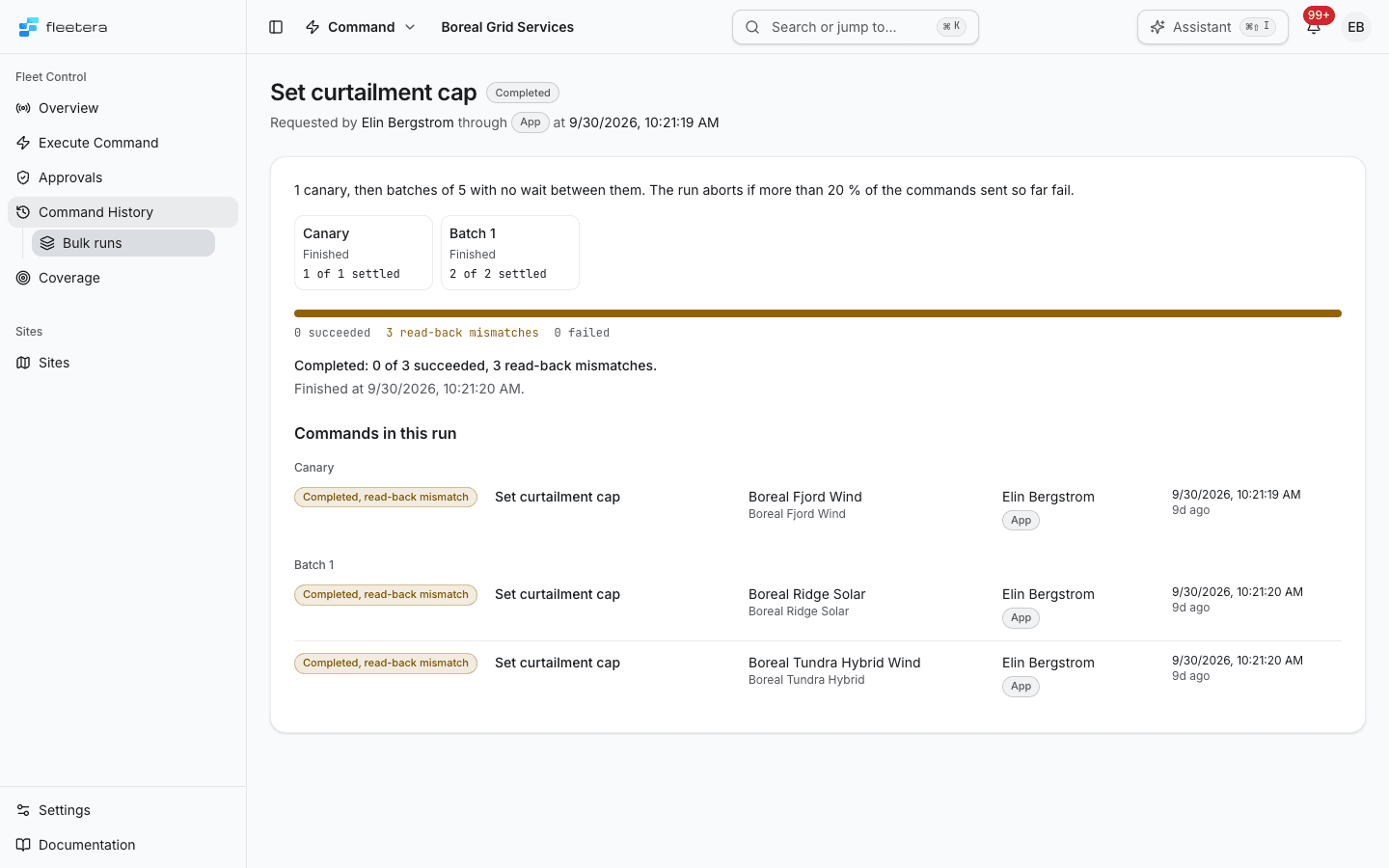
The page shows the policy, a tile for each batch with how many of its commands have settled, the counts so far, including read-back mismatches, and every command in the run grouped by batch. Each command links to its own record. If any command in the run was refused because its target was under local control, an alert says how many and why.
Pause, resume and abort
Operators and admins control a running run from its page:
- Pause stops the run after the batch that is running. Until then the page says "Pause requested; the run stops after the batch that is running."
- Resume continues a paused run with its next batch. If the command's risk rose while the run was paused, Resume is refused and the run stays paused: abort it and send a new request that confirms the new risk.
- Abort asks for confirmation and an optional note. No further batch starts. Commands already sent finish on their own, because a sent command cannot be recalled.
The controls appear only on a run that has not finished, and not on runs created before staged rollout, which show Not staged on the Bulk runs page.
Run statuses
| Status | What it means |
|---|---|
| Pending | Created, and the first batch has not started |
| Executing | Batches are being sent |
| Paused | Stopped between batches. It can be resumed or aborted |
| Completed | Every command completed. This does not mean every value was verified: check the read-back on each record |
| Partly failed | Some commands completed and some failed |
| Failed | Every command failed |
| Aborted | Stopped by the failure threshold or by a person. Commands in batches that had not started were not sent |
Each command in a run follows the same statuses as a command sent to one asset. Past runs are listed on Bulk runs.
Sending Commands
Send a command to one asset from its Commands section, check the current value first, and read what the equipment answered.
Command History
Review every command requested in your organization, open its record, filter by status, read-back, origin, command and requester, and export the ledger as CSV.